
Expert Knowledge
Dataverse for Teams vs SharePoint Lists: How to Migrate
Moving your Teams apps off Dataverse for Teams? Compare it with SharePoint lists and follow five steps to rebuild your apps before the 2027 deadline.

Raphael Buchberger

Microsoft is retiring Dataverse for Teams. From 15 November 2026, no new Dataverse for Teams environments can be created, not even for a team's first app or agent. Environments that are not upgraded will be suspended on 15 September 2027 and deleted on 30 October 2027. If you want the full timeline and the cost of upgrading, start with our deprecation guide.
This article is about the alternative many admins are looking at right now: Dataverse for Teams vs SharePoint lists, and how to move Teams apps into SharePoint lists. You already pay for SharePoint as part of Microsoft 365, your data stays in your tenant and you avoid a Premium licence for every user.
Below you will find an honest comparison of Dataverse for Teams and SharePoint lists, a 5-step migration process and a look at which tools to rebuild your apps with.
{{Ad-1}}
Why SharePoint lists are the natural new home for Dataverse for Teams apps
Already licensed and already in use
SharePoint is part of every Microsoft 365 business licence. Your users know it, your admins manage it and your compliance and backup policies already cover it. Moving data from Dataverse for Teams to SharePoint lists does not add a new system.
No per-user licence for the data
Upgrading a Dataverse for Teams environment means every user needs a Power Apps, Power Automate or Copilot Studio licence. Data in SharePoint lists does not. That difference is the main reason SharePoint is on the shortlist for simple, widely used apps.
Built to last
Lists and libraries have been the core of SharePoint for more than twenty years. Microsoft has replaced many tools around them, from InfoPath to SharePoint Designer workflows, but the lists themselves stayed. For data you want to keep for years, that matters. If you are unsure whether lists can carry your data, our guide on using SharePoint as a database shows what works and where the limits are.
Dataverse for Teams vs SharePoint lists: an honest comparison
SharePoint lists are not a one-to-one replacement for Dataverse. For most Teams apps they are more than enough, but you should know where the differences are.
| Dataverse for Teams | SharePoint lists | |
|---|---|---|
| Licence | Included in M365 until 2027, then upgrade with per-user licences | Included in Microsoft 365 |
| Storage | 2 GB per environment | Tenant storage: 1 TB plus 10 GB per licence |
| Number of items | Limited by 2 GB | Up to 30 million items per list |
| Relationships | Relational tables | Lookup columns between lists |
| Permissions | Security roles tied to the team | SharePoint permissions, down to item level |
| API access | No direct API access | Microsoft Graph and SharePoint REST API |
| Future | Retired in 2027 | Core part of Microsoft 365 |
Where SharePoint lists need care
- Views over 5,000 items: SharePoint has a list view threshold. Index the columns you filter and sort by, and large lists stay fast.
- Complex data models: many-to-many relationships and deep hierarchies are harder to model with lookup columns. Plan your lists before you migrate.
- Heavy transactions: apps with thousands of changes per minute belong in a real database, not in a list. Teams apps rarely work like that.
If an app hits one of these limits, upgrading that single app to Dataverse may be the right call. For the rest, lists work well. Before you migrate, it helps to plan how your lists relate to each other. Our guide on SharePoint lists as a database shows how to model these relationships.
How to migrate from Dataverse for Teams to SharePoint lists
Step 1: Export your data
Start with the data, not the app. For each table in the Dataverse for Teams environment, export the rows, for example to Excel or CSV, or use a Power Automate flow that reads the table and creates items in the new list. Keep the export even after the migration, as a fallback.
Check attachments and images separately. They are often stored differently and are the part most likely to be forgotten.
Step 2: Rebuild the data model as lists
Create one SharePoint list per table. Map each column to the closest SharePoint column type: text, number, date, choice, person, yes/no. Replace relationships with lookup columns, and add indexes on the columns you will filter by.
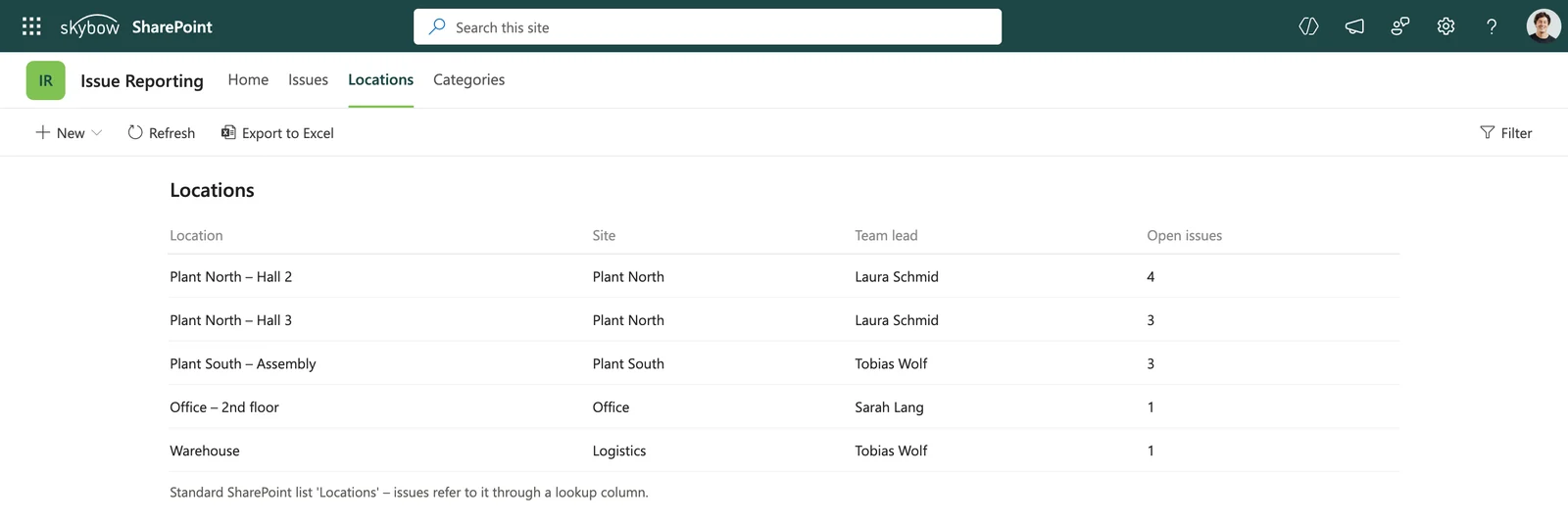
This is also a good moment to clean up. Columns nobody fills in and tables nobody uses do not need to move.
Step 3: Rebuild forms and logic
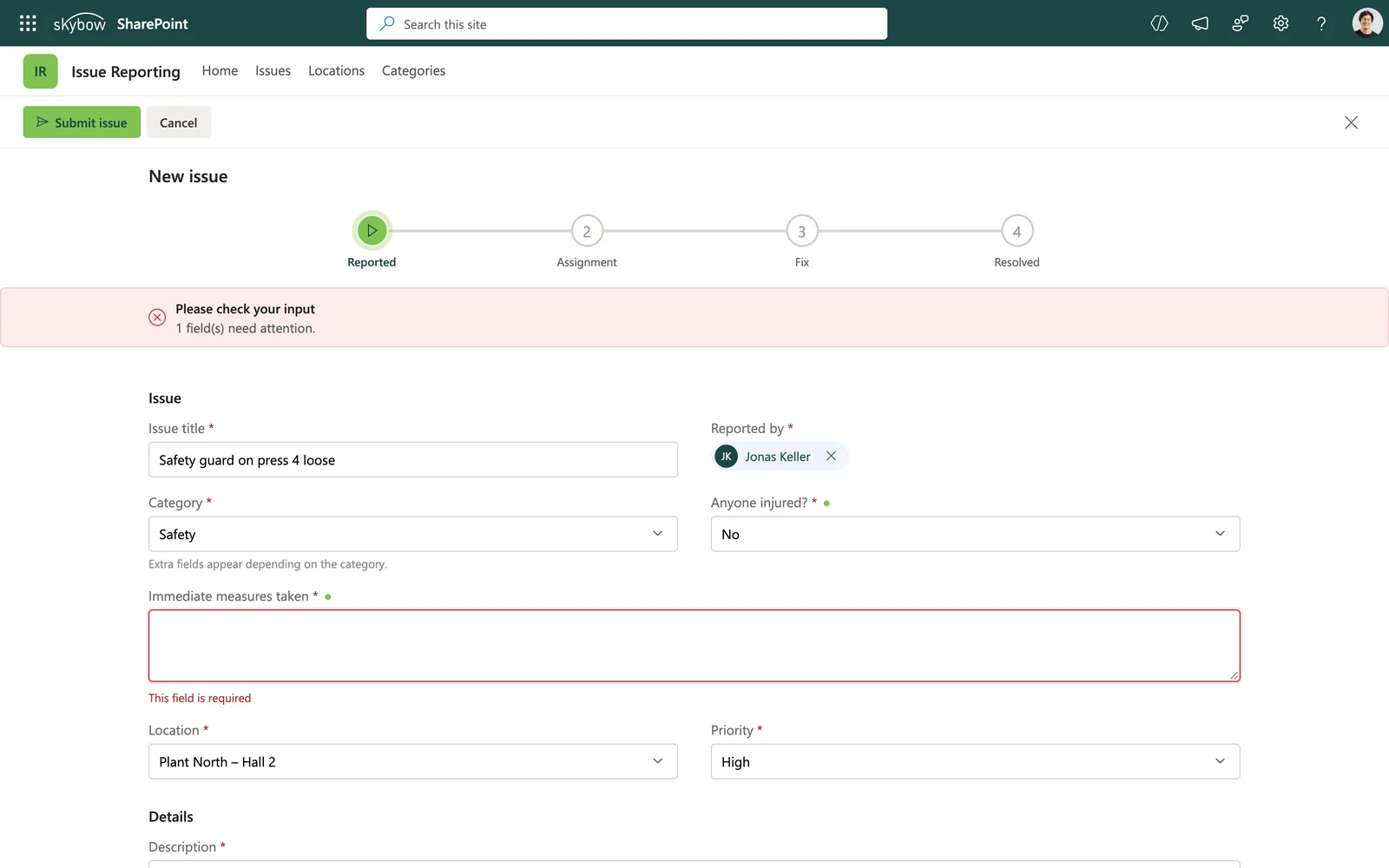
Next comes the user interface: the forms people fill in, the views they work with and the rules behind them. Which fields are required, which are only visible in certain cases, which values are calculated.
Write these rules down before you rebuild. In Teams apps they are often hidden in formulas that nobody has documented.
Step 4: Rebuild approvals and notifications
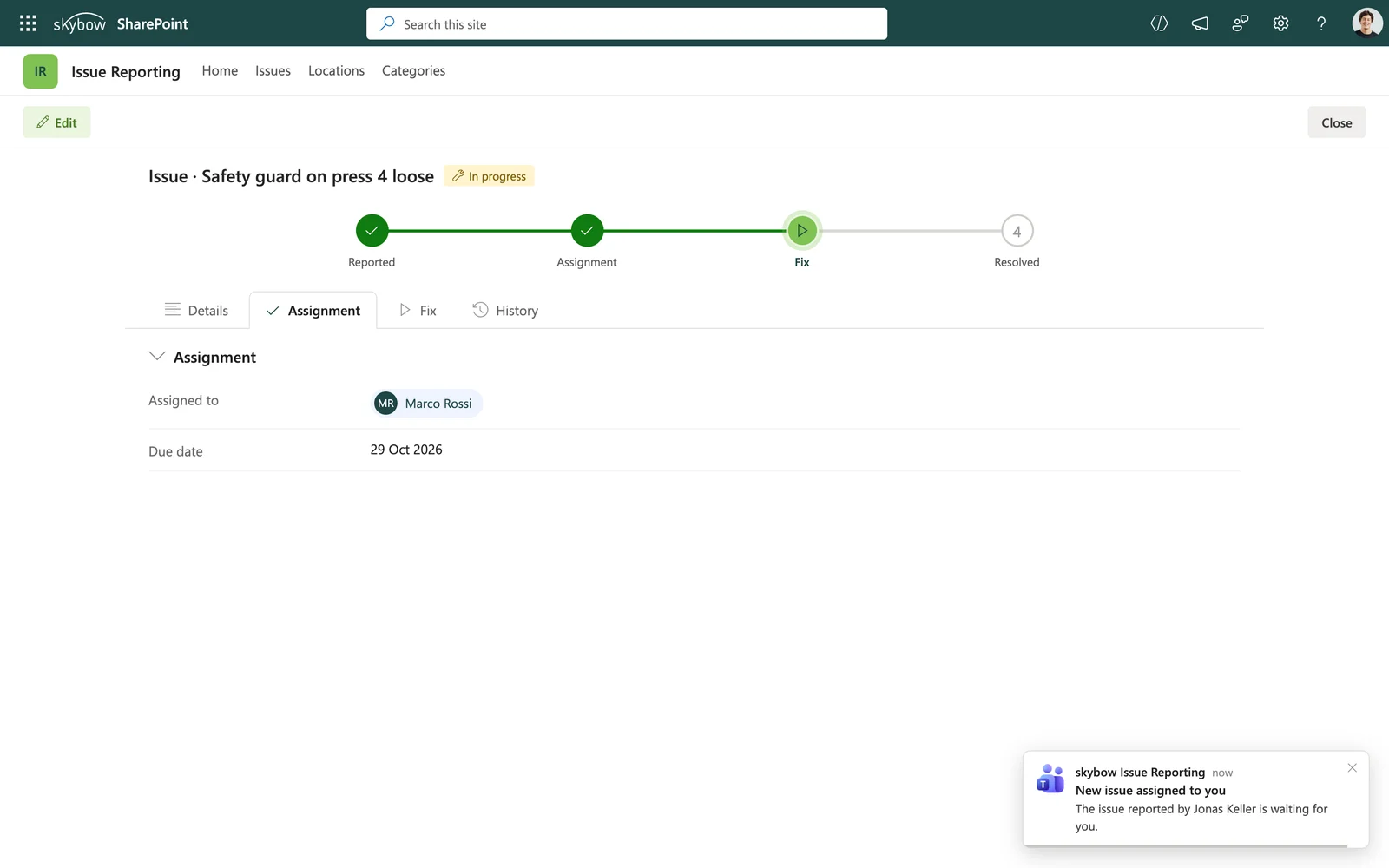
Most Teams apps have some process attached: a manager approves a request, the requester gets an email, a team is notified when something changes. List every flow, what triggers it and who is involved, then rebuild it on the new lists.
Step 5: Test, roll out and switch off the old app
Let a few real users test the new app with real cases. Then move the remaining data, point the team tab to the new app and switch off the old one. Do not wait for Microsoft to do it for you in September 2027.
We have moved InfoPath and Nintex solutions to SharePoint for years. If you want, we look at your migration plan before you start and point out what is easy to miss.
A worked example: the issue reporting app
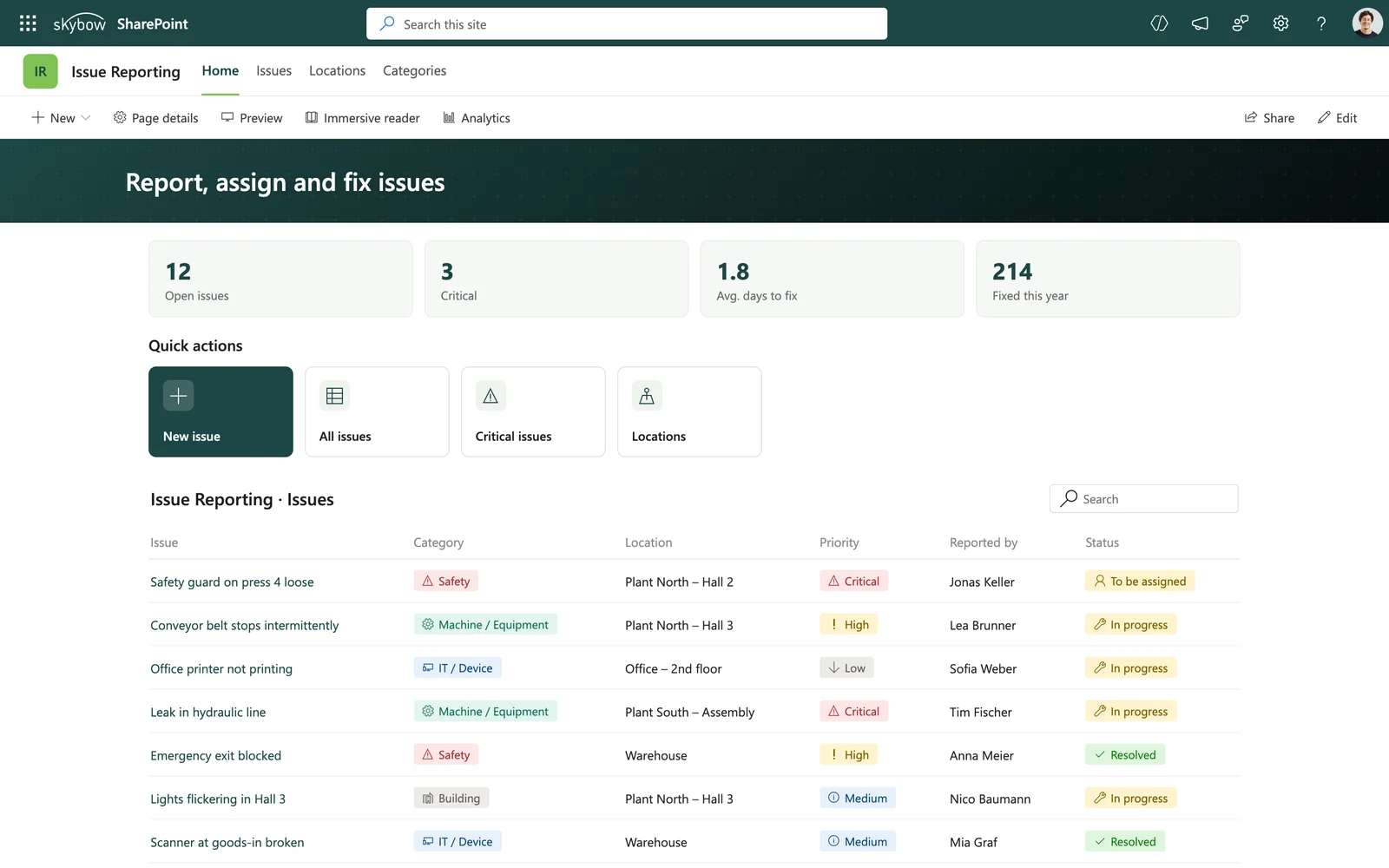
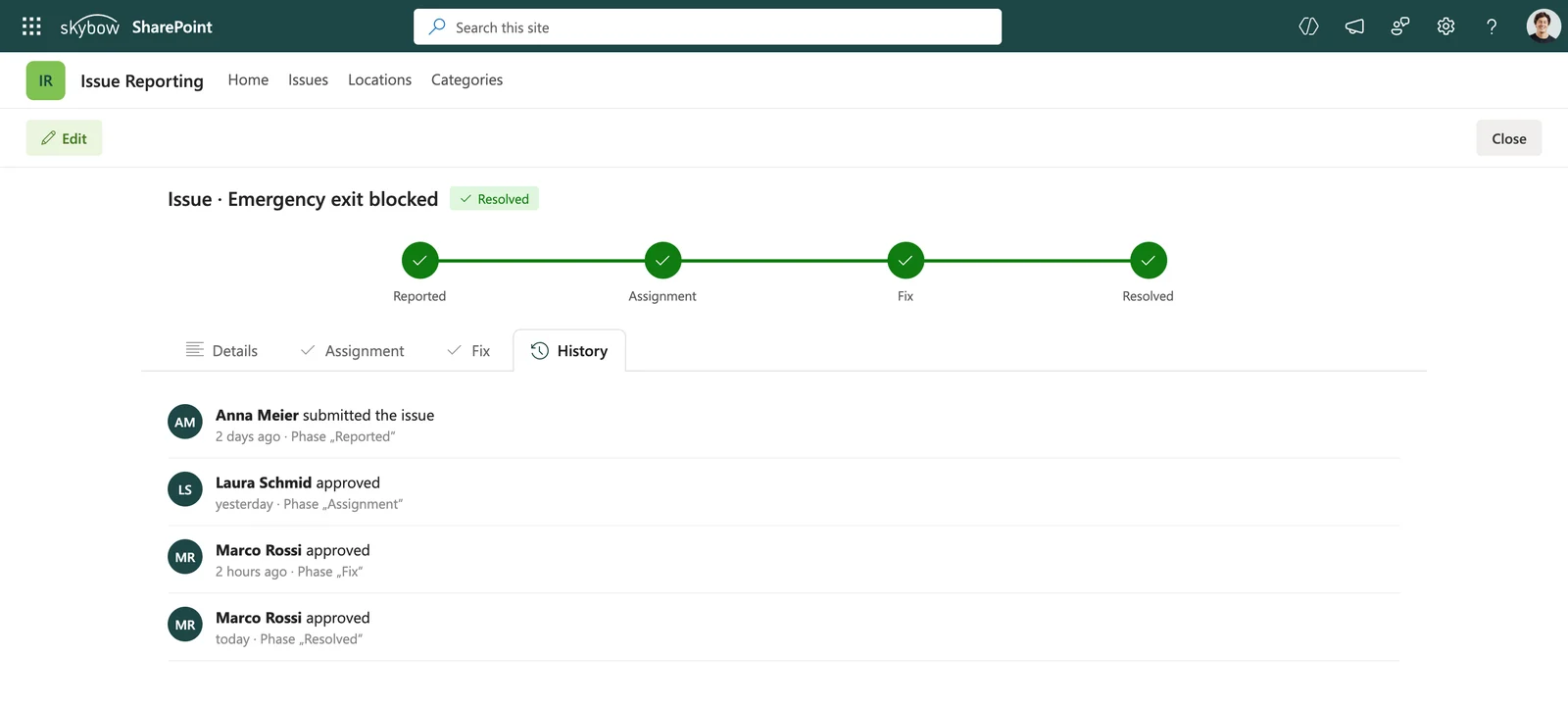
To make the steps concrete, take a typical Teams app: an issue reporting app based on Microsoft's template. Employees report a broken machine or a safety issue, a team lead assigns it, and the reporter is notified when it is fixed. Around 200 people use it.
The data model
In Dataverse for Teams, the app uses three tables: issues, categories and locations. In SharePoint, this becomes three lists. The issues list gets lookup columns to categories and locations, a person column for the assignee and a choice column for the status (new, in progress, resolved). Photos move into a picture column or an attached document library.
The form and the process
The form needs the same rules as before: category and location are required, the assignee field is only visible to team leads, and the status can only be set to resolved once a resolution comment exists. The process stays small: a notification to the team lead when a new issue comes in, and one to the reporter when it is resolved.
The cost difference
Upgraded to Dataverse, this app needs a licence for each of its 200 users. At the Power Apps Premium list price, that is around 4,000 US dollars a month, and 4,400 from January 2027, when Microsoft raises the price to 22 US dollars per user. On SharePoint lists, the data itself costs nothing extra. What you pay for is the tool you rebuild with. With skybow, that is one skybow licence per user for forms, workflows and automation. In our published 500-user example, skybow costs around 1,500 US dollars a month, compared with 6,000 or more for Power Apps.
Common migration mistakes and how to avoid them
1. Starting with the app instead of the data
A rebuilt app is useless if half the data did not make it across. Move and check the data first, then build on top of it.
2. Migrating everything one to one
Teams apps often grew over time. Fields that nobody fills in, statuses that nobody uses and screens that nobody opens can stay behind. A migration is the cheapest moment to simplify.
3. Forgetting the hidden logic
Validation rules, default values and calculated fields often live in formulas that are not visible to users. Go through the old app screen by screen and write down every rule before you switch it off.
4. Ignoring permissions
In Dataverse for Teams, access followed team membership. In SharePoint, you decide. Set up permissions on the new lists deliberately, especially if some items should only be visible to certain people.
5. Leaving it until summer 2027
Every organisation that waits will be looking for the same help at the same time. Plan the migration in the first half of 2027 at the latest, and you can choose your partner and your pace.
Which tool should you rebuild with?
Once the data is in SharePoint lists, you need something to build forms and processes on top of them. There are two main routes.
Power Apps and Power Automate with standard connectors
Canvas apps and flows that only use standard connectors such as SharePoint run with the Power Apps and Power Automate rights included in Microsoft 365. If your team already knows Power Apps, this is a natural choice.
Keep two things in mind. Rebuilding means writing Power Fx formulas and flows again, which takes time and skills. And as soon as one app needs a premium connector, every user of that app needs a Premium licence. If you are weighing up other tools as well, our overview of Power Apps alternatives compares the main options.
A SharePoint-native platform such as skybow Studio
skybow Studio builds forms, workflows and business logic directly on SharePoint lists and libraries, without code. Approvals, notifications and document generation are part of the same tool, so there is no second product to license or maintain.
This route suits organisations that want business users to build and change their own apps, with IT keeping control of the platform. Typical skybow solutions go live in two days to five weeks. You pay one skybow licence per user; in our 500-user example that is around 1,500 US dollars a month. The skybow vs Power Apps comparison lists features and costs side by side.
Key takeaways
- SharePoint lists are already licensed, already in use and a stable home for most Teams app data.
- They are not a full Dataverse replacement: plan for the 5,000-item view threshold and complex relationships.
- Migrate in five steps: export, rebuild the data model, rebuild forms, rebuild processes, test and switch off.
- Avoid the classic mistakes: data first, simplify on the way, document hidden rules, set permissions deliberately.
The deadline is fixed, but the work is manageable if you start early and move app by app. Begin with the apps people use every day, and retire the ones nobody would miss.
Want help moving your Teams apps? We support you from the data export to the finished solution in SharePoint, and the first call is free.
You want to create your next SharePoint project faster and easier with low-code?
Read more


Let's talk about your workflows
We know the feeling of wanting to get started straight away. Let's create the perfect set-up together.
Ads
Ad-1

Ad-2

Ad-3

Ad-4

Ad-5

Ad-6
